

Figma
Figma email designs created outside of Emailify are not supported
Create the email layout with Emailify's design tools before exporting production-ready HTML. These tools add the Row, Column, Button, and other structured layers Emailify needs to generate HTML. You can customize their content and styles after adding them.
Adding layers or frames that were previously designed in Figma without the Emailify plugin will be rendered as a static image, instead of rich text/HTML content.
Setting image format overrides
Emailify will automatically detect if a layer contains areas of full transparency and set PNG as the default export format, otherwise it will be set to JPG. You can override this to set the export format of any layer to JPG or PNG by adding your own export setting.
Freezing issue with Figma 'Scroll Wheel' or 'Drag to Pan' settings enabled
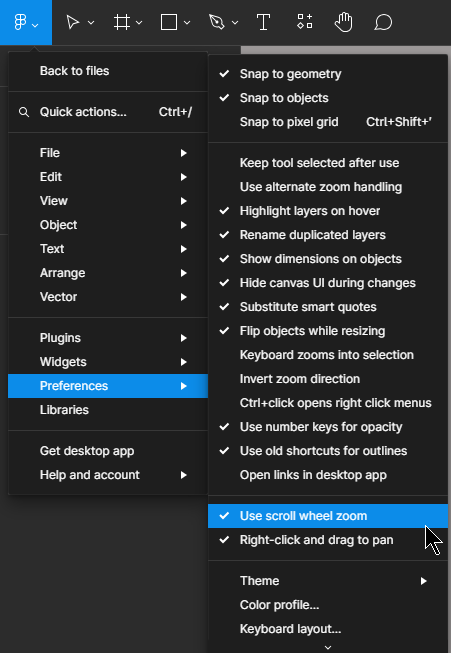
There's a random issue where the plugin or the canvas may have a strange freezing behavior if these settings (as shown in the screenshot below) are enabled.
If this is happening in your Figma file, you can resolve this by disabling these settings in Figma by going to the Main Figma Menu, going down to Preferences, and then unchecking the Use scroll wheel zoom and Right-click and drag to pan settings.
Adding links to normal Figma text layer paragraph/content
If you highlight the text you'd like to link in the Figma text layer, and then click on the native Figma "Link" icon button in the Figma header toolbar area, that will let you paste a URL in, which Emailify will automatically render.
Only use this for content text layers (not buttons or nav links). Note that this only works for normal content text layers; if you need to set a link on a button, social icon or navigation link layer that Emailify generates, you need to click on that Figma layer, then click the Settings button in the Emailify plugin header, then paste your URL into the link field.
Button or link labels are visible in Figma but missing from the preview or export
If a button is empty or a navigation link is missing even though its text is visible in Figma, the cause can be an export issue with mixed font data, including variable fonts. A correct link URL does not guarantee that its label was exported.
Keep the labels as editable text inside their original Emailify Button or navigation components. Close and reopen Emailify, refresh the preview, and export again. Check the downloaded HTML before uploading it to your email platform.
If the labels are still missing, contact support with the affected Figma email frame and the exported HTML or ZIP so we can inspect the text layers and reproduce the issue.
Adding superscript or subscript text
You can add superscript and subscript to your Figma text layers, and that will automatically get rendered as superscript (for example, sup) or subscript (for example, sub) tags in the HTML export from the plugin.
Using heading tags (for example, h1, h2, h3) in your HTML text
If you need to, you can swap the default paragraph tag (p) for any heading tag (eg., h1, h2). You can wrap your Figma text layer content with a heading tag you're after, and that will automatically handle changing the tag when the HTML is exported via the Emailify plugin.
Blank file extensions using Figma desktop app on Windows
There's a known issue with the Figma desktop app (only on Windows), which also happens for normal file exports from Figma. When you go to save your file, you may see an "all files" label. If you ignore this and continue by clicking "Save", it should still save the file with the correct extension and allow you to open it as expected after it has downloaded to your computer. If it still saves the file with a blank extension, you should be able to rename the file to manually append the correct extension to the file name.
Optimizing your designs to reduce the size of the HTML export
The number of Row components has the biggest effect on exported HTML size because each Row creates another set of table elements. Reuse a Row when its content can fit inside the same structure.
For example, a heading, subheading, body, and button can share one Column inside one Row. They do not need four separate Row layers.
Emailify settings panel options not appearing when clicking an Emailify Figma layer
If you're clicking an Emailify layer in your Figma design and the settings aren't showing up when clicking the Settings button in the plugin header, your main Emailify frame may be nested inside of other frames or groups etc; to resolve this, you can move your Emailify frame out of any nested frames/layers and move it back out to the "Page" level, so that it isn't nested inside of any other layers.
UTM query parameters are stripped when sending an HTML email
There are a few reasons that UTM query string parameters may get stripped out when you send your HTML emails, as more browsers/devices have been starting to automatically remove these (for privacy reasons) in the last year or so. If the query strings are working when you open the links from the Emailify preview window, but not after the email is sent from your email marketing platform, then there's likely an additional link forwarder/shortener getting applied when the email is sent that may be stripping those out or breaking them.
'Please wait, loading Figma images...' speed
Figma had an update a little while ago that forces all Figma plugins to wait for every single full resolution image in the current Figma page to finish loading before a plugin can export any image data (even if it only needs one layer/image).
The only solution at the moment is to try and limit the number of frames/layers on your current Figma page, which will help make this process much faster when the plugin initially runs. For example, you could create a brand new page in your current Figma file, and only the Emailify frame(s) you want to work on or export to that blank page, and that should load much faster when you re-run the plugin there.
Pixelated image exports
If you're exporting your email while the image assets in Figma are still progressively loading, they may be exported looking pixelated, as the image wasn't fully loaded in the Figma file before it was exported. To resolve this, please ensure that all of the images have loaded 100% and are looking sharp inside the Figma file before exporting your emails with the Emailify plugin.
To help further with solving this issue, you can use the "Downsizer" feature in TinyImage to shrink down your image fills to match their layer size, which will shrink their file size and ensure they load much faster in your Figma file.
Editing PDFs in Adobe Acrobat shows dotted lines
This can be resolved by un-checking the "Show bounding boxes" toggle in the Acrobat Acrobat app sidebar while editing your PDF. Showing the dotted bounding box lines is something that Adobe enables by default while enter "Edit" mode when you have a PDF open in the app, but turning off the "Show bounding boxes" toggle will turn hide those from being displayed with one click.
VPN may be required in China
Note, if you're in China, the accounts server may be blocked by "The Great Firewall of China". If you're seeing a activation error, despite using a valid key, you will likely need to use a VPN to resolve the issue.
'An error occurred while loading the plugin environment'
This may happen in the Figma desktop app if the Use Developer VM debug setting in Figma is enabled by mistake; you can make sure it's turned off by right-clicking anywhere on your Figma canvas, hovering over Plugins, then hovering over Development, and making sure that the Use Developer VM is unchecked; after it is unchecked (and does not have a tick icon next to it), re-running the Figma plugin should work as expected.
Image uploads being blocked on your network
If you've enabled the Upload Hosted Image URLs feature, or uploaded the HTML email to any email platform using the built-in Emailify export options, the plugin will automatically upload the images online to be hosted automatically.
If you're seeing a warning message in the plugin (Images uploads may be blocked on your current network), this means that the plugin isn't able to access the upload service required to host those images online.
This is usually usually due to the network (for example, your company, which may have a firewall blocking certain URLs) or ISP (internet service provider) you're connected to restricting or blocking the URLs; to troubleshoot this:
- Try tethering your mobile phone as a Wi-Fi hotspot to your machine, then re-run the Emailify Figma plugin again to see if this resolves the issue. If so, it means that your other network was blocking the requests.
- You can also try using a VPN, which should tunnel your network requests and get around any network blocking issues.
- If you're already using a VPN, try turning that off, then re-run the Emailify Figma plugin again to see if this resolves the issue.
If you're still having issues, please feel free to get in touch via email.
Email Clients
New Outlook may rewrite styles after an email loads
New Outlook for Windows has a reported post-processing issue that can cause an email to display correctly at first, then change after it has loaded. Outlook appears to rewrite parts of the email's CSS during this second rendering step, which can cause issues such as desktop columns unexpectedly stacking vertically.
This behaviour is inconsistent: one recipient may be affected while everyone else sees the expected layout, and identical test sends may render differently in the same mailbox. Customer.io has documented these symptoms and the current findings in New Outlook, same headache.
New Emailify exports include a defensive compatibility layer for the known column-stacking case. Emailify keeps MJML's original responsive styles and classic Outlook table fallbacks, then places a second copy of only the generated desktop column-width rules inside the email body. This helps web-based Outlook variants that remove styles from the email head, while preserving MJML's normal mobile stacking and breakpoint behaviour for other clients.
You do not need to rebuild the design. Update Emailify and re-export the email so the generated HTML contains the fallback before sending another test.
If you encounter this issue:
- Open the affected email in a separate window instead of the Outlook reading/preview pane. Reported cases often render correctly in the separate window.
- Send the same exported HTML to another recipient or email client to check whether the issue is isolated to one Outlook user.
- If identical sends render differently, download both received messages as
.emlfiles and compare their HTML before changing the Emailify design or export.
The fallback reduces the reported desktop column-stacking failure, but Emailify cannot control every style rewrite performed after delivery. If the issue persists and the received HTML is unchanged, avoid making major design changes solely to address one inconsistent Outlook preview.
Forwarding any HTML email templates breaks them
Unfortunately, if someone decides to forward a custom HTML email that they've received to someone else, this often visually breaks the email after it's forwarded on to somebody else.
The reason for this is that different email clients will modify (or remove) part of the HTML code when the email gets forwarded, causing it to break; as this When Forwarded Emails Break article from Litmus details:
It’s common knowledge that email clients all render email differently. When a subscriber forwards an email, some email clients make changes to the code of the forwarded message. This can include stripping out certain HTML elements, wrapping your email in a blockquote, or inserting additional classes to your code—all of which can break your design and make the email less functional for the recipient of the forwarded email.
One common option to help mitigate this impact is to have a "Web link" version that can be opened in the browser if it's not rendering correctly, usually added somewhere to the top of the email (like this one in MailChimp), you could also create this as a shareable type link in the email somewhere as well, if needed.
My emails are getting sent to spam. What could be causing this?
There are a few common reasons your emails might land in spam:
- Too many links: Every link affects deliverability. Remove links that are not essential, including unnecessary social media links, to improve inbox placement.
- Poor sender reputation: If your domain or IP has a history of low engagement, bounces, or complaints, mailbox providers may flag your emails.
- Spammy content: Overuse of promotional language (for example, “Free!”, “Act now!”, “Limited time offer”) or too many images and too little text can trigger filters.
- Authentication issues: Make sure you’ve correctly set up SPF, DKIM, and DMARC for your sending domain.
- Low engagement: If subscribers consistently don’t open or click, your future emails are more likely to be marked as spam.
- List quality: Sending to old or purchased lists can cause bounces and spam complaints that hurt your sender score.
Start by simplifying your email, checking your domain authentication, and trimming any unnecessary links; those changes alone often improve deliverability.
Dark mode overrides are only supported on iOS/Mac Apple Mail apps
Currently, support for dark mode override styles in email clients is still relatively low; so please be aware of this and try to design your emails with the "progressive enhancement" of these dark mode overrides in mind.
It's also worth using some other clever design techniques for creating your email with dark mode in mind as a fallback with other email clients, too.
The Gmail white-button-text workaround has a narrower purpose: preserving pure-white button text. It does not provide a way to keep black text on a pale background unchanged in Gmail dark mode.
Thin white sub-pixel lines on stacked mobile images
This sometimes happens if you're using full width inline images, as depending on the device width, when the image gets scaled down on mobile, it can have these "sub-pixels" creep in to the height of the image (which is what's leaving that faint gap between each one and letting the background show through from behind it).
The quickest workaround for this would be to add a Wrapper layer around your "Row" layers that contain those images, and then also set the background for that Wrapper as a "Linear Gradient" with your background color (for example, grey) on both sides of the gradient; this will ensure that the background gets rendered as an image, to avoid the CSS background color still getting swapped out or inverted to black on dark mode, and should provide a consistent background behind your image rows to cover up the sub-pixel gaps there.
Google/Custom Font embeds are only supported on iOS/macOS Apple Mail apps
Currently, support for custom fonts in email clients is only supported in Apple Mail for iOS/macOS, so using web safe fonts is recommended for your Figma text layers, which you can set via the Configure Fonts panel under the "Preview" feature in Emailify.
Also, certain email service providers (like MailChimp) actively strip them out before the email is even sent to ensure that only web safe fonts are used.
However, Emailify still includes Google Font @imports, and also sets a fallback websafe font (for example, "Arial", "Georgia" or "Courier") if a Google Font is being used for rich text. They'll be visible on any email clients that support the use of @font-face in emails.
Use custom fonts in your images. Note that if you need to ensure a custom font is visually consistent across all email clients, it may be worth putting your text layers inside of an "Image" frame. This text content will be exported as part of the image itself, and therefore won't be relying on custom web font support to display correctly.
Form elements in emails are not supported
The support for form elements in HTML emails is still quite low, and can cause the emails to be flagged as spam etc if they're included, so it's best to avoid using native forms inside of HTML emails at the moment.
The best workaround is to create a nice looking call to action (CTA) button in your Emailify design, and then link that off to an external form URL like Google Forms or Typeform, and collecting the information from recipients there via the browser instead.
Understanding how image blocking works in some clients
Thare a couple of really good articles below describing what image blocking is and which email clients enable it by default (mainly Outlook), whereas other clients like Gmail, Android, Apple/iOS etc all show images by default.
How Image Blocking Works in Email
Email Image Blocking: Answering the What, Why, Where, Who, and How
Unfortunately, it's not related to if the images are secure (SSL) or not, it's always just across the board for any images inside of the email.
The upside is that usually if the recipient is using one of the former email clients, they're fairly used to this happening and clicking the "show images" button, or more likely have already enabled images to show by default for incoming emails.
Purple text in Gmail (multiple test sends with the same subject line)
If you're sending multiple tests of an email to a Gmail account, you might notice that certain text is a dark purple color.
This isn't a problem with your HTML code; it happens when Gmail decides that multiple emails sent in the same day with the same subject are responses to one another. When this happens, it displays the thread of emails in a "conversation view."
To learn more about Gmail's conversation view, read Google's documentation:
The purple coloration is a display only feature that only exists in the display where it is being seen. It is not sent in any messages and you can use Gmail's show original feature to verify that - you will need to know a little about HTML coding.
The color is applied to text that is repeated from a previous message in the current conversation and the reason it is visible to recipients is because they also are using Gmail and they also have copies of previous messages in the current conversation. What gets coloured in their conversation might be quite different from what gets coloured in yours.
Email clients adding blue links to dates, phone numbers and addresses
This is a long time issue where certain mail clients will automatically apply links to things like dates, phone numbers and addresses, and apply their own color styles to them as well (usually blue links).
Emailify automatically applies all the suggested code fixes to help mitigate this in some email clients, but the clients often get updated to workaround/remove these fixes from getting applied.
There are 2 extra/ methods you can try to prevent the email client from adding links automatically (which are both mentioned in those articles above):
Method #1 is to pre-apply a placeholder link (for example, to your own website) to each of those text layers in Figma, and just remove any underline styles in Figma and set the color to whatever you like (so it won't appear clickable); this will pre-apply a link tag around the date text, so the email client won't try to automatically apply its own unstyled link instead.
Method #2 is to add a special invisible HTML entity (which is: ‌) directly after the first character in each of your dates, phone numbers or addresses (for example, 6‌75 Massachusetts Ave, Cambridge, MA 02139), and that should hopefully trick the email client into thinking it's not a date and prevent it from applying a date link automatically.
Certain VPNs may be blocked from displaying uploaded images
If you've enabled the Upload Hosted Image URLs feature, or uploaded the HTML email to any email platform using the built-in Emailify export options, there's a very rare edge case where certain IP addresses assigned by some VPNs are blocked by the image host and will prevent the image from loading.
If you're having any issues with images not loading, this is the likely cause (please temporarily turn off your VPN to verify this yourself).
Email signatures do not support custom fonts
Unlike full/regular HTML emails, where it's possible to embed custom fonts - but still only for Apple Mail (other clients like Gmail and Outlook do not support any kind of custom font embeds) - email signatures don't support having a style tag to be able to add any font embed code at all, so you should design your signatures to use web-safe system fonts, instead.
Gmail iOS app not rendering mobile responsive styles
The main reason for this is if any of the CSS properties or styles in the @media query contain a typo (for example, padding-bottm instead of padding-bottom) or if there's a line-break in the middle of a style property (for example, padd new line ing-top), the Gmail app will ignore all other styles and won't render any mobile responsive overrides.
This should not happen with code exported natively via the plugin, but may occur if you are manually editing the HTML code after exporting it from Emailify (of if your email marketing platform is modifying the code or adding line length limits).
500 characters per line limit in HTML emails
Emailify limits exported HTML to 500 characters per line. Although the formal limit is 998 characters, shorter lines avoid rendering and delivery problems seen in Outlook and some email service providers.
VPNs may cause some social media links not to open correctly
While this seems to be rare, if you're having any issues with links to some social networks (for example, Facebook, Instagram) not opening correctly, this is the likely cause (please temporarily turn off your VPN to verify this yourself), and not an issue with the HTML email or the links themselves.
Outlook
Border radius not showing in Outlook
Unfortunately, the border-radius property isn't supported in Outlook, so it will always fall back to normal square edges instead. Please see the border-radius support list for a better idea of which email clients support this CSS property.
Button height collapsing on Outlook.com (due to not having a real URL)
If you're seeing the height of a button component collapsing to the size of the text layer inside of it, Outlook.com does this if the href isn't set to a real URL (for example, [replaceLinkInHere] instead of a real URL like https://google.com). Setting a real URL on your button component by clicking the button layer in Figma, and using the Settings button in the plugin, and paste in your URL there.
1px white line on 'reversed order' rows in certain Outlook versions
There's a known bug in some versions of Outlook when using the reverse column setting where a 1px white line can show up beside one of the columns. This is one of Outlook's rendering quirks caused by the Microsoft Word rendering engine, and it can happen when the reversed Row also has padding applied to it.
The best workaround is to remove the padding from that reversed Row layer, wrap the Row inside a Wrapper, and move the padding to the outer Wrapper instead. That keeps the same visual spacing, but avoids the Outlook rendering bug on the reversed Row itself.
This workaround aligns with the approach discussed in the related MJML GitHub issue.
Outlook automatically turning dates/times into blue calendar links
To prevent Outlook parsing the text as a date/time and stop it from automatically rendering it as a link, you can insert a "zero-width space" HTML entity (​) in-between the days, dates and times to break Outlook's pattern matching, like this tested and working example here: Monday​ — Friday 8​am to 5​pm
Uppercase text with accents (diacritics) getting cut off
If you have a text layer with "uppercase"/caps, and some characters contain diacritics (for example, Ä, Ö, Ü) where the top accent is not showing in Outlook; the reason this is happening is that the "line height" value on the text layer in Figma is smaller than the "font size" value for the text, and Outlook will basically crop/cut off any content that isn't contained inside the line-height value (unlike other clients, which will just allow it to overflow normally).
To resolve this, all you need to do is increase the line-height value to be a little bit larger than your font size; for example if you have a text layer with a "24px" font size, and your line-height is currently "23px", you need to increase the line-height from "23px" to "28px" in Figma (to provide enough extra height buffer for the accents rising above the 24px uppercase font cap size), and that will then render the accents/diacritics as expected in Outlook without being cut off due to the lower line-height.
The random '1px line' Outlook bug
There's a very annoying issue known as the Outlook 1px line bug that randomly appears in certain versions of Outlook where:
Outlook will add extra lines to our emails. These lines will inherit the background set on your body tag... to make matters worse, this bug seems to happen at random, although it does appear more regularly on Windows 10 machines, compared to Windows 7.
As mentioned in the article above, while it's quite random and there's no reliable fix for it; it can usually be solved with some trial and error of adjusting the font size for the text content above where the line shows up. For example (from the article):
For some folks, the fix is as simple as changing font sizes from odd numbers to even numbers. For example, if you have a font size of 13px or 15px, try converting it to 14px.
There's another good overview article called Fixing White Lines in Outlook that goes into some extra detail and potential fixes, too.
For a deeper dive, this Outlook 2016 madness and the weird 1px thin horizontal lines article goes into some more detail about the underlying issue, and this detailed Litmus forum discussion also speculates on possible causes and ways to try troubleshooting it.
Gmail
Gmail clipping the email
Gmail clips emails that have a message size larger than 102KB, and hides the full content behind a "View entire message" link. To avoid this, use the Preview button to see the size of your HTML file before exporting, and remove as much content as possible to try and get the file size down.
If the email is still getting clipped, despite being under the HTML file size limit, it's most likely due to a UTF-8 character being used in the email content, which also can trigger Gmail to clip the email. The best solution here is to replace the UTF-8 character with its HTML encoded version (for example, by using © instead of ©), which the plugin does apply automatically.
One other reason this happens is if you're sending out emails with the same subject line (for example, when sending multiple tests to yourself), where Gmail will consolidate the emails into a single thread, and can clip the contents of the subsequent sends. To get around this, ensure that the subject line is always different (for example, "Test v1", "Test v2", etc).
Buttons with white text turning black in Gmail mobile app in dark mode
Gmail (and other apps) will automatically apply dark mode styles to your email when the user's system theme is set to dark mode, which includes buttons.
For buttons intended to have white text in both light and dark mode:
- Set the button text layer to pure white (
#FFFFFF) in Figma. - Select the Button component, open Settings, and set its dark mode override text color to pure white (
#FFFFFF) too. - Export the email again and send a test to the Gmail mobile app where you saw the issue.
With both colors set to pure white, Emailify adds extra compatibility code intended to preserve the white button text. This workaround does not preserve black or other non-white text, or lock the button's background color. If your design needs black text on a pale background, keep those intended colors and test that design separately; changing the text to white would change the design rather than solve that requirement.
If the result still differs from your design, contact support with the exported HTML or ZIP, a screenshot, the email app and device, and the text/background colors you want to keep. Include the settings you've already tried. See dark mode design and testing for the broader workflow and limitations.
Columns stacking on desktop in Gmail
Some email service providers (like MailChimp) will try to modify your email's HTML before it gets sent out, which can cause some of the columns in your email to stack on Gmail when viewed on desktop, instead of being in a row.
Usually for the purpose of these platforms modifying your HTML is to ensure they're "inlining" styles onto your HTML elements. However, Emailify automatically pre-inlines all of the CSS styles, so that your emails are production ready. If you can find a setting in your email service provider's HTML/import options to "disable" this inlining or modification, this should resolve the issue.
If you're unsure if it's being caused by your email service provider or the code itself, please use a free service like htmltest.email (which won't modify any of your HTML) to send yourself an email test. If the test works from htmltest.email, then your email service provider is modifying your HTML before it's sent out.
Gmail on iOS forces a minimum line-height
If setting line-height to a value less than the current font-size, Gmail will automatically change it to line-height:normal;; so line-height:1, line-height:1em, line-height:100% all work as expected, however line-height:0.9, line-height:0.9em, line-height:99%, will all get converted to line-height:normal;.
Same works for px values, where font-size:20px; line-height:19px won't work, but font-size:19px; line-height:19px will work.
To resolve the issue, just make sure that the line height on your text layer is equal to or greater than the font size.
Gmail iOS app not rendering mobile responsive styles
The main reason for this is if any of the CSS properties or styles in the @media query contain a typo (for example, padding-bottm instead of padding-bottom) or if there's a line-break in the middle of a style property (for example, padd new line ing-top), the Gmail app will ignore all other styles and won't render any mobile responsive overrides.
This should not happen with code exported natively via the plugin, but may occur if you are manually editing the HTML code after exporting it from Emailify (of if your email marketing platform is modifying the code or adding line length limits).
Gmail mis-translating English-only emails into other languages
If your email contains mostly image blocks, without rich text, or lots of image blocks before any rich text lower in email, Gmail will sometimes think that the email is in a different language and prompt you to translate it into English, this is despite the code automatically getting a lang="en" attribute added to the html and body tags by Emailify.
As per this article discussing it on the Litmus forums:
We have found (empirically) that mails containing a lot of CSS and HTML before any actual content get classified as English even though the content is in another language.
Our workaround is to send a multipart text and HTML email, with a text version before the HTML part. Of course the text must be consequent, not just "Bonjour ...", as otherwise the HTML tags/CSS are still dominant.
The translation algorithm does not seem to make any attempt to strip out html/css from the body of the mail, or if it does, perhaps it truncates the message before stripping and so ends up with very little content to use for detection purposes. (It is easy to end up with >5000 caracters of headers and CSS these days before a single line of content.)
GIFs
Converting videos into animated GIFs for your emails
While native video tags sadly aren't supported for HTML emails, the best way to add animated images or video content into your HTML email designs is to use GIFs instead; either using a GIF file downloaded from the internet, or one you've created yourself.
If you already have a video you'd like to use as a GIF, you can use a free app called Gifski to help convert short video files into animated GIF files to use in your email designs.
Then there's also a good walkthrough video tutorial that goes through the different ways that you can use GIFs in your Emailify designs and include them in your exports to HTML.
Colors/gradients in GIFs look a bit grainy
GIFs are a bit different from normal JPG/PNG images, as they can only contain a maximum of 256 colors. If you're using highly detailed images or gradients with lots of color variation, it's expected that it won't look as sharp or have the same color accuracy as the original images used as the source of the GIF due to this limitation of the GIF format.
Transparency isn't showing in GIFs
The GIF file format supports either 0% opacity or 100% opacity, but nothing in between. This means that you can have an animated GIF with a completely transparent background behind elements that are completely opaque and visible. This means that layers either need to be completely transparent or not; any layers with lower than 50% opacity will be transparent, while any layers with opacity greater than 50% will be opaque.
Flagging transparent GIFs in Figma. Emailify will try to automatically detect if your GIF contains a transparent background; if your GIF does require transparency, and the plugin isn't detecting that by itself, Add the word Transparent anywhere in your Figma layer's name (for example, My Layer Name - Transparent) to force it to be exported with a transparent background enabled.
Keeping your original GIF file during export (by maintaining the aspect ratio)
If you drop your GIF into Figma and resize the layer proportionally to maintain the original aspect ratio, Emailify will automatically use the original GIF file in your exports.
Conversely, if you change the aspect ratio of your Figma layer to be different to the original GIF, Emailify will need to re-create your GIF to account for the cropped image area, which can lead to larger GIF file sizes and slower export times.
GIF image not showing in Gmail (file size limit)
If you've used GIFs in your design, but aren't seeing them show up when you do a test send to a Gmail inbox, it's likely that the Gmail image caching limit is being hit, which causes it to not render.
During export to HTML, Emailify will try to compress any large GIFs to get them underneath the file size limit for Gmail, which should resolve this issue in almost all cases (unless the GIF is exceptionally long, large in size, or contains a very high frame rate to begin with).
Klaviyo
Klaviyo template editor (sometimes) crashes when GIFs are used in your email design
There is a random bug with the Klaviyo that causes it to have an Error 500 (internal server error), where it shows a page saying Something is amiss. We're on it.; this seems to mainly happen if the template is "Editable".
Klaviyo are aware of this bug, but there doesn't seem to be any plans to fix it in the near-term.
One workaround here is to remove the GIF in your Figma design before exporting the HTML for Klaviyo, and then upload the GIF image separately into Klaviyo after the template editor loads without the error above.
Extra padding around text blocks in editable Klaviyo templates
Due the Klaviyo updating their editor, and forcing all templates to use it as of June 6th 2023; unfortunately, if you're exporting HTML emails with the Editable Content toggle enabled in Emailify, Klaviyo will automatically apply ~18px of additional padding around each text element by default, as an inline style attribute to a new td element that it injects into the HTML if it's an editable template.
Enabling the Force the padding added by Klaviyo's new editor to be 0px toggle in Emailify does automatically add some extra CSS to remove this padding for all mobile clients and non-Outlook desktop clients like Gmail etc, however, Outlook will still render the padding unless each of the "Padding" values for any editable text blocks in your template are manually changed to "0" when editing the email for your Campaign in the Klaviyo editor.
Klaviyo preview text is duplicated or shows extra body copy
Set the preview text in one place only. If you've already entered Preheader Text in Emailify, leave Klaviyo's own preview text field empty. If you prefer to manage preview text in Klaviyo, leave Emailify's preheader blank for that export.
If Klaviyo is still showing extra body copy after your intended preview text, turn on Add Whitespace to Preview Text in Emailify's export options and re-export the email. This adds a hidden compatibility spacer after a non-empty preheader, but inbox handling can still vary between Klaviyo and different email clients.
See Set a subject line and preheader text for your HTML emails for the full preheader workflow.
MailChimp
Enabling editable images will use blurrier @1x images (instead of @2x retina)
You can optionally enable your images in the template to be editable in MailChimp with the Editable Images toggle, but unfortunately, MailChimp doesn't support editable @2x retina images, so these will be @1x instead.
If you'd prefer to have @2x retina images that aren't editable, please leave this option turned off.
MailChimp removes hyperlink styling when embedding Typekit font <link> tags
MailChimp removes link styles when a custom Typekit stylesheet is added to your email. Specifically, if you include a tag like: <link rel="stylesheet" href="https://use.typekit.net/lml7iwl.css">
in the <head>, MailChimp will strip all style attributes from your <a> tags. Removing this tag fixes the issue and restores your link styles.
If you’d still like to use your Typekit fonts, you can do this through the plugin’s built-in Web Fonts feature. Instead of linking the stylesheet, you’ll need the direct .woff2 font file URL from your Typekit CSS file (for example: https://use.typekit.net/...). Paste this URL into the Configure Fonts panel in the plugin, and it will automatically generate the correct @font-face style to match your Figma font names in the HTML. See the step-by-step video tutorial for more guidance.
Note that custom web fonts only work in Apple Mail. Other email clients (such as Outlook or Gmail) don’t support them, so we recommend setting a web-safe fallback font in the plugin to control what displays. Many users find it easiest to design with web-safe fonts in Figma, but adding custom web fonts can still be a nice progressive enhancement for Apple Mail users.